6 IDX Web Interfaces
Industry Data Exchange See Relevant Rules or Procedures (IDX) provides web interfaces within the Markets Portal Web applications for registered participants only. Requires access to MarketNet. to monitor, troubleshoot, and manage B2B Business-to-Business. Generic term used to refer to defined business-to-business interactions between participants; excludes interactions between a participant and market systems such as MSATS. and B2M Business-to-Market transactions.
The following set of interfaces are available for this release:
- Transaction Log
- Outbound Archive
-
Flow Control
-
Participant Status
6.1 User rights access
Your Participant Administrator Creates and maintains access to AEMO systems for their Participant ID users. manages access to the interfaces by assigning the following entities in the Markets Portal menu Administration > Maintain Rights. For help, see User Rights Management in Markets Portal Help.
|
Interface |
Entity |
|---|---|
|
Transaction Log |
TRANSLOG_TRANSLOG |
|
Outbound Archive |
ARCH_RETRIEVE |
|
Flow Control |
FCTRL_FCTRL |
|
Participant Status |
FCTRL_STATUS |
|
Event Subscription |
EVENT_NOTIFY |
6.2 Data exchange
The Data Exchange menu includes interfaces for viewing and managing messages:
- Transaction See Relevant Rules or Procedures log
-
Outbound archive
-
Hub Queue – This interface will be available in a subsequent release.
6.2.1 Transaction log
The Transaction Log interface records all transactions sent and received across markets and Business As defined in the NERL. Functions.
Participants can search for messages, download search results as a csv Comma Separated Values. A file format for data using commas as delimiters. file, view related records for request–response or fan‑out messages, track message statuses, create acknowledgements, and download message payload content.
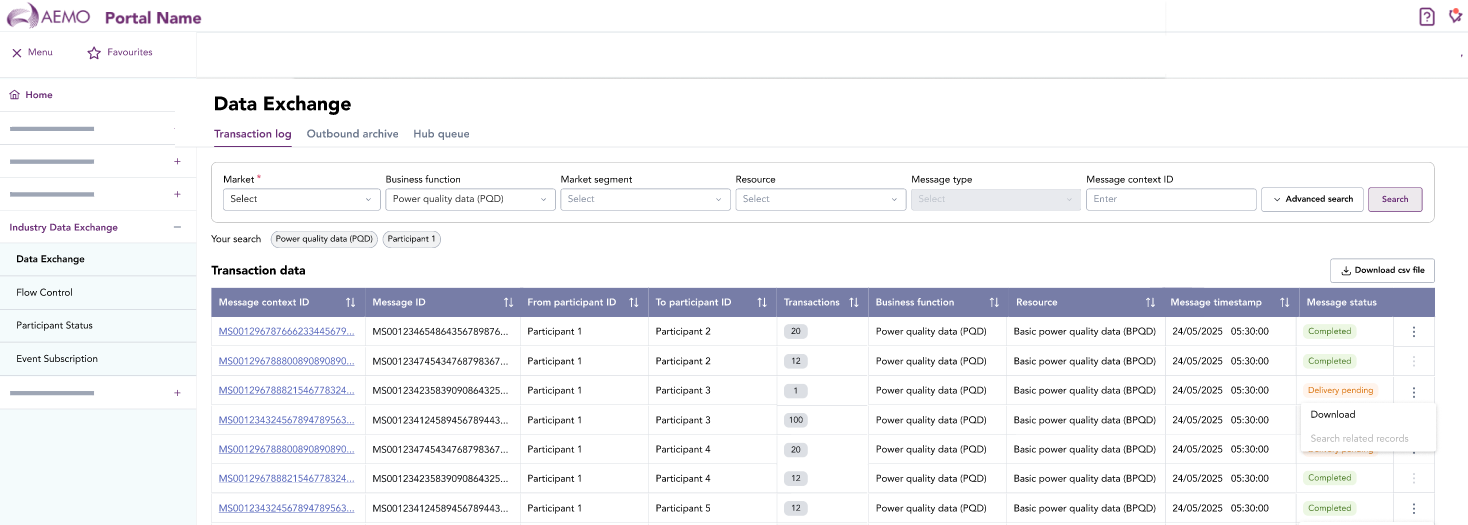
Transaction log fields
|
Column name |
Description |
|---|---|
|
Message context ID |
A unique identifier for the message, grouping related B2B transactions under a single parent message. |
|
Message ID |
Unique message identifier assigned to each message by the sender |
|
From participant ID |
The participant ID initiating or sending the message |
|
To participant ID |
The participant ID receiving the message |
|
Transactions |
The number of B2B transactions contained within the message |
|
Business function |
The market business function the message belongs to, for example, Power Quality Data (PQD) |
|
Resource |
The specific IDX API resource or transaction type, for example, Basic Power Quality Data (BPQD) |
|
Message timestamp |
The date and time the message is created |
|
Message status |
The message status. The status options available depends on the business function’s data exchange pattern. See Message status table |
|
Action menu |
The action menu provides the following options according to the business function’s data exchange pattern:
For more information, see action a message |
Table 3 Message status
|
Message status |
Description |
Message exchange pattern |
|---|---|---|
|
Delivery pending |
Message persisted but awaiting acknowledgment |
|
|
Completed |
Outbound message successfully delivered |
|
|
Removed |
Message not deleted by receiving participant and exceeds the business function time to live (TTL) |
|
|
Acknowledged |
Acknowledgement received |
Asynchronous |
|
Rejected |
Message acknowledgment is rejected |
Asynchronous |
Table 4 Transaction status
|
Transaction status |
Description |
Message exchange pattern |
|---|---|---|
|
Delivery pending |
Message transaction persisted but awaiting acknowledgment |
|
|
Completed |
Outbound message transaction successfully delivered |
|
|
Removed |
Message transaction not deleted by receiving participant and exceeds the business function time to live (TTL) |
|
Action a message
A message listed in the Transaction Log is associated with a message exchange pattern (fire‑and‑forget, asynchronous, or synchronous). The pattern determines the actions available in the interface as shown in the table below.
Table 5 Action availability
|
Message exchange pattern |
Delete |
Download |
Acknowledge |
Reject |
|
Business functions and resources |
|---|---|---|---|---|---|---|
|
Fire‑and‑Forget |
✓ |
✓ |
✕ |
✕ |
|
Basic Power Quality Data |
|
Asynchronous (Request–Response) |
✕ |
✓ |
✓ |
✓ |
|
TBD |
|
Synchronous |
✕ |
✓ |
✕ |
✕ |
|
TBD |
Fire-and-Forget action logic
|
Action |
Conditions |
Comments |
|---|---|---|
|
Delete |
|
|
|
Download |
A message payload exists and the message status is Delivered or Completed |
Message can be downloaded as a zip file in the Outbound Archive and is within the archive expiry date |
|
Acknowledge |
n/a |
No acknowledgment is required in this pattern |
|
Reject |
n/a |
Not applicable. Recipients cannot reject a Fire and Forget message |
Asynchronous action logic
|
UI Action |
Conditions |
Comments |
|---|---|---|
|
Download |
An async message payload is available |
Message can be downloaded as a zip file based on the payload format of the Business Resource |
|
Acknowledge |
Message status is Delivery pending and awaiting acknowledgment |
Shown when the Participant is the responder |
|
Reject |
Allowed when an async inbound message for a business function supports rejection |
Used to reject async requests in allowed business functions |
|
Delete |
n/a |
Async flows is retained for auditing and legal traceability |
Synchronous action logic
|
UI Action |
Conditions |
Comments |
|
|---|---|---|---|
|
Download |
Immediate synchronous response payload exists |
Synchronous response is returned instantly, so only the Download action is relevant |
|
|
Acknowledge |
n/a |
Acknowledgment is not applicable for this data pattern |
|
|
Reject |
n/a |
Reject is not applicable for this data pattern |
|
|
Delete |
n/a |
Removal not permitted because the synchronous request/response pair forms a single immutable event |
|
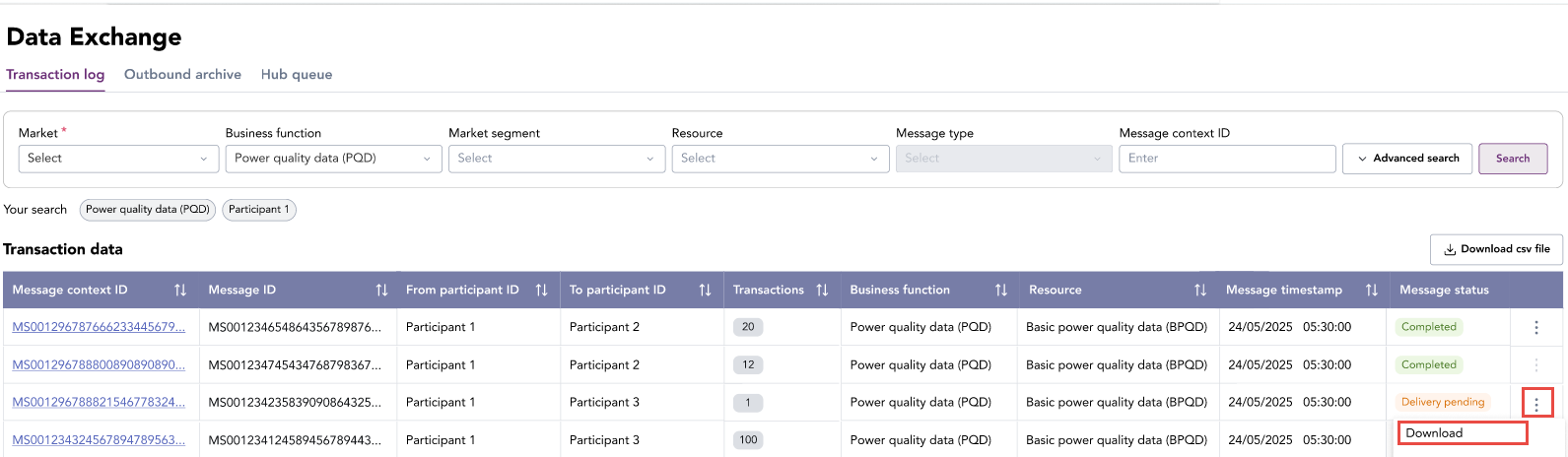
To action a message:
-
On the main menu, click Data Exchange, then click the Transaction Log tab.
-
On the listed message, click the actions menu (3 vertical ellipses)
-
Select the available action:
Download – Download the message containing transactions as a csv file
Acknowledge – Acknowledge the message
Reject – Reject the message
Delete – Delete the message. The message can no longer be downloaded.
6.2.2 Outbound archive
The Outbound Archive interface enables finds and downloads archived outbound messages. It is a subset of messages listed in the Transaction Log interface. It provides search filters, archive-specific metadata, and access to archived message payloads.
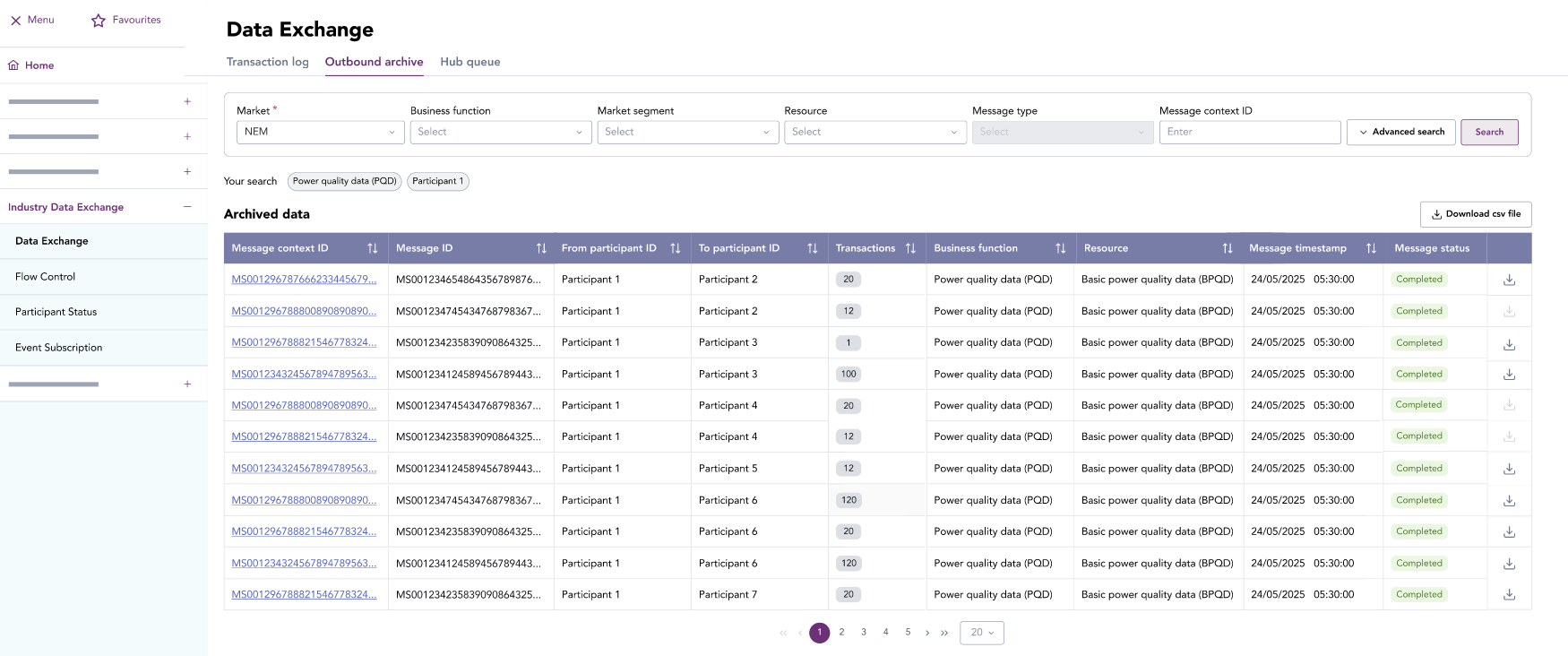
|
Section |
Element / Field |
Description |
|---|---|---|
|
Search panel |
Date Range (From / To) |
Mandatory fields used to limit the archive search to specific dates. |
|
|
From Participant (optional) |
Allows filtering by sending participant. |
|
|
To Participant (optional) |
Allows filtering by receiving participant. |
|
|
Business Function |
Filters archive results by IDX business function (e.g., BPQD). |
|
|
Message Context ID / Message ID |
Optional filters to refine to a specific archived message. |
|
|
Search / Clear buttons |
Executes the search or resets search criteria. |
|
Archive data columns |
Message Context ID |
Displays the unique context grouping related archived messages. |
|
|
Message ID |
Identifies the specific archived message. |
|
|
From / To Participant IDs |
Sender and receiver identifiers for the archived message |
|
|
Transactions |
The number of transactions in the message |
|
|
Business function |
The Business Function the original outbound message was processed |
|
|
Message timestamp |
The date and time the outbound message was created |
|
|
Message status |
Archived message status, for example, Completed or Archived |
|
|
Download availability indicator |
Indicates whether the archived item can be downloaded based on retention rules. If highlighted, the archived payload can be downloaded. |
|
Actions |
Download CSV |
Exports the listed archived messages as a csv file |
|
|
Pagination Controls |
Allows navigation through multi‑page archive results (max limits enforced). |
Message retention
Messages or files are stored in the archive according to defined Time to Live (TTL) retention periods defined for the Business Function or Business Function Resource.
Searching archived messages
To search archived messages:
-
In the Markets Portal, navigate to Industry Data Exchange > Data Exchange and select the Outbound Archive interface.
-
In the search panel, select the Market (mandatory) and optional fields to filter the search. Click Advanced Search for additional search filter criteria.
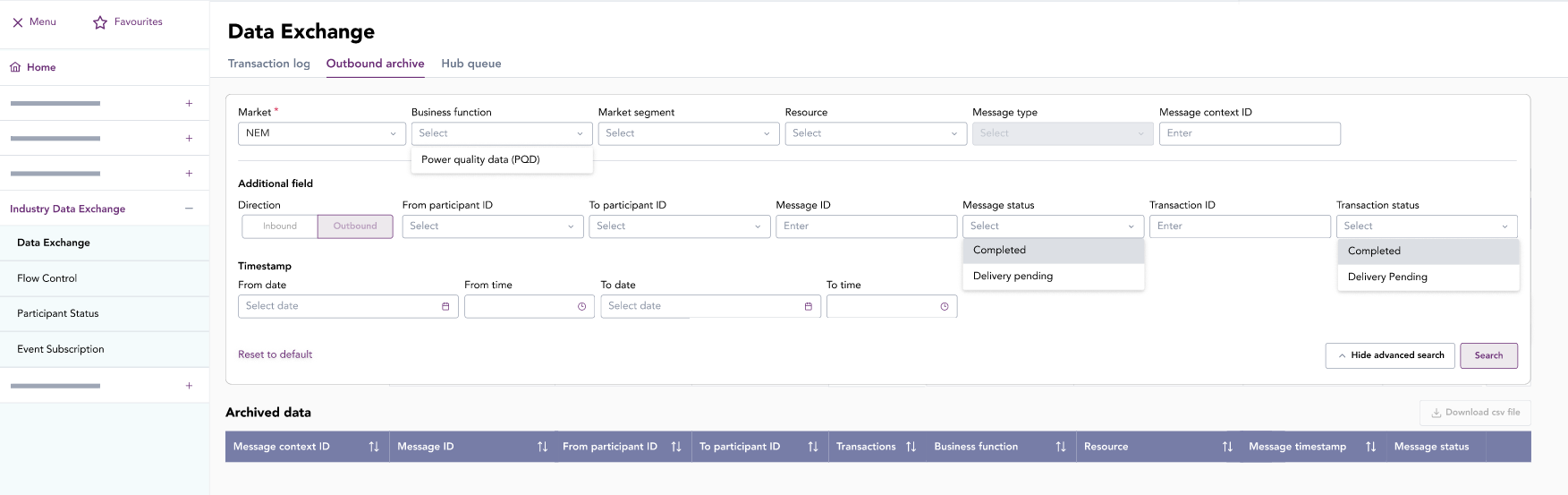
-
Click Search to retrieve archive messages.
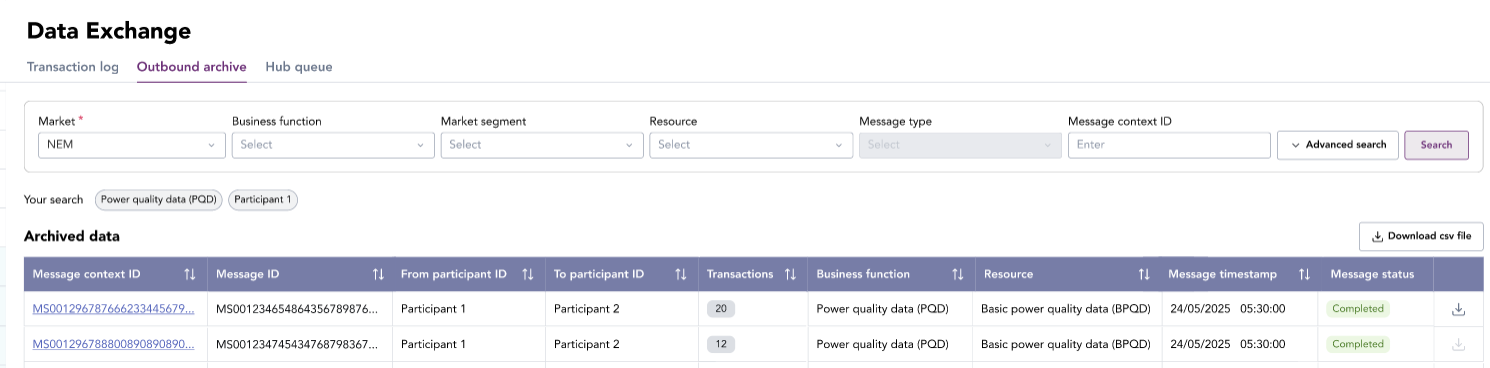
-
If the Download indicator is available, click the download action to download the payload as a file.
-
Click Download csv file to export search results as a csv file.
Viewing message transactions
Transaction details in a message can be viewed by clicking on the Message Context ID for the listed message. For more information, see View message.
6.2.3 Search transactions
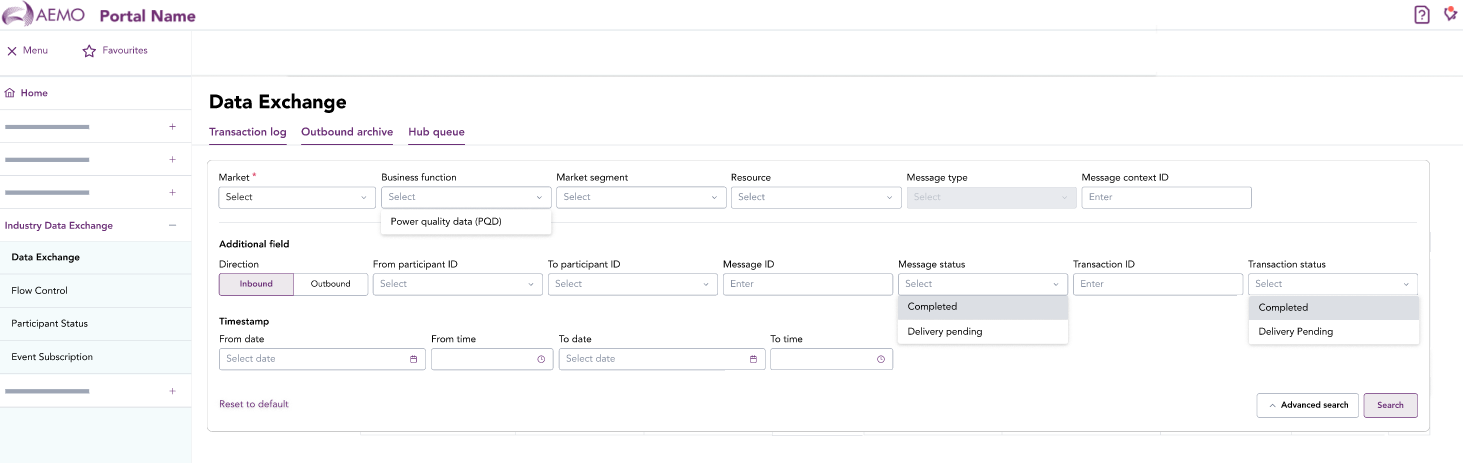
The Transaction Log and Outbound Archive web interfaces provide search criteria to filter and locate specific messages across all business functions.

Clicking the Advanced Search to displays the advanced search panel.
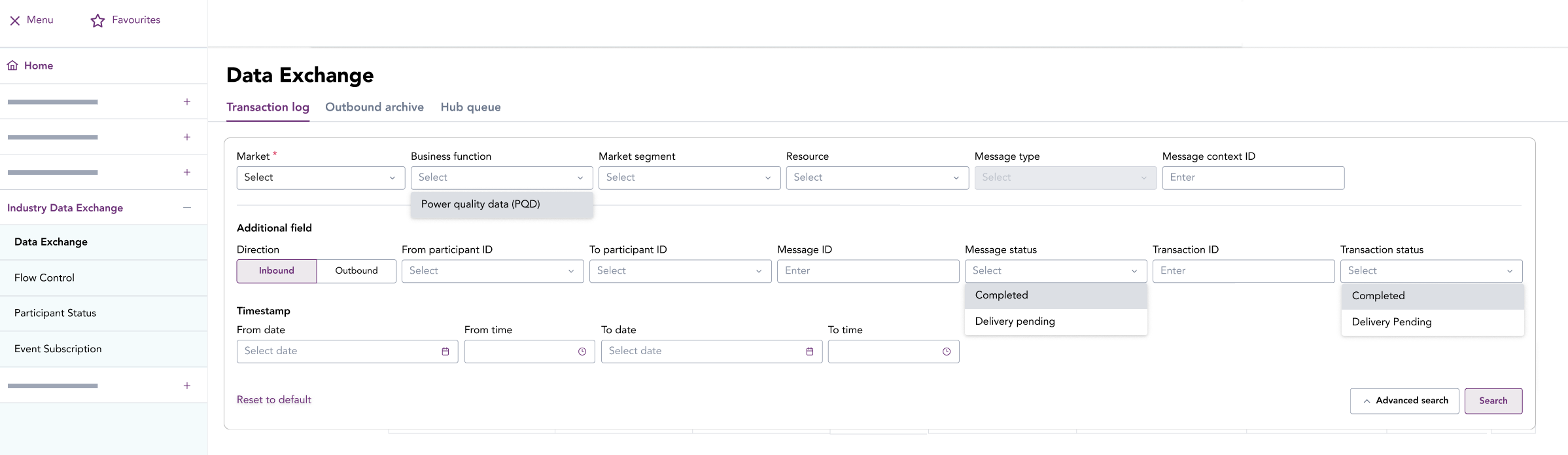
Direction search filter
The Direction filter in the Advanced Search panel controls how transactions are searched relative to the Participant ID Registered participant identifier; A company can have more than one Participant ID. logged in the Markets Portal.
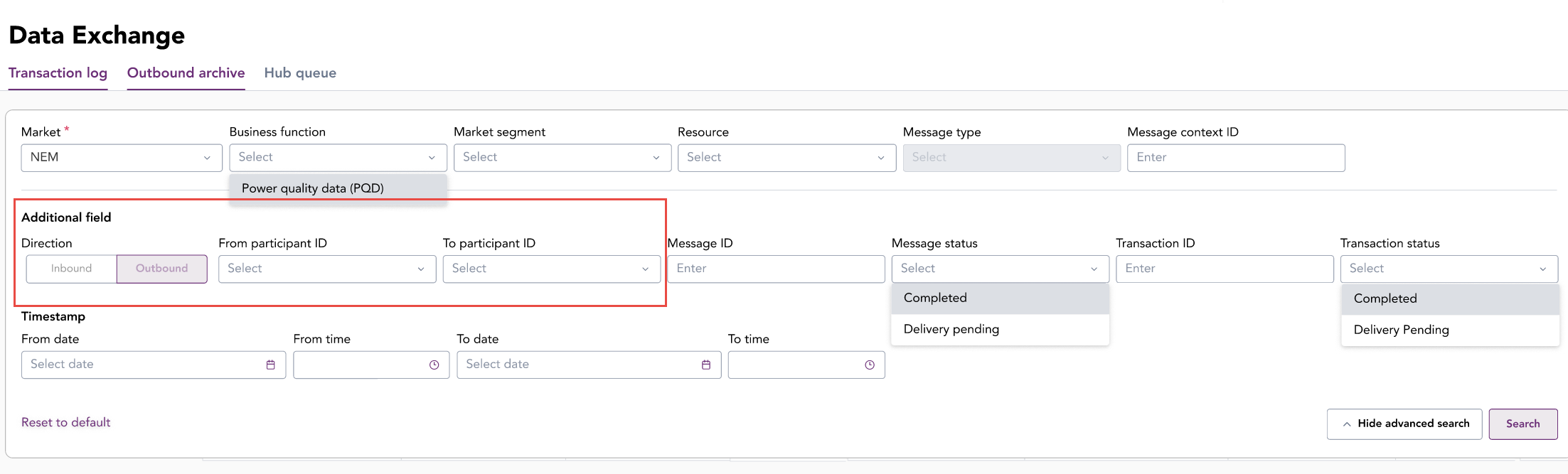
The Direction setting determines:
- the participant role as either the sender or receiver
-
which participant ID field is fixed and which remains selectable
|
Direction |
Description |
Participant field behaviour |
Search result |
|---|---|---|---|
|
No direction selected |
Default state |
|
Provides broader searching where direction is not required
|
|
Inbound |
Transactions received by the participant ID
|
|
Only inbound messages addressed to the logged-in participant ID are returned |
|
Outbound |
Transactions sent by the participant ID
|
|
Only outbound messages originating from the logged-in participant ID are returned |
6.2.4 View transactions
Transaction details in a message can be viewed by clicking on the Message Context ID for the listed message. For more information, see View message.
6.2.5 View message
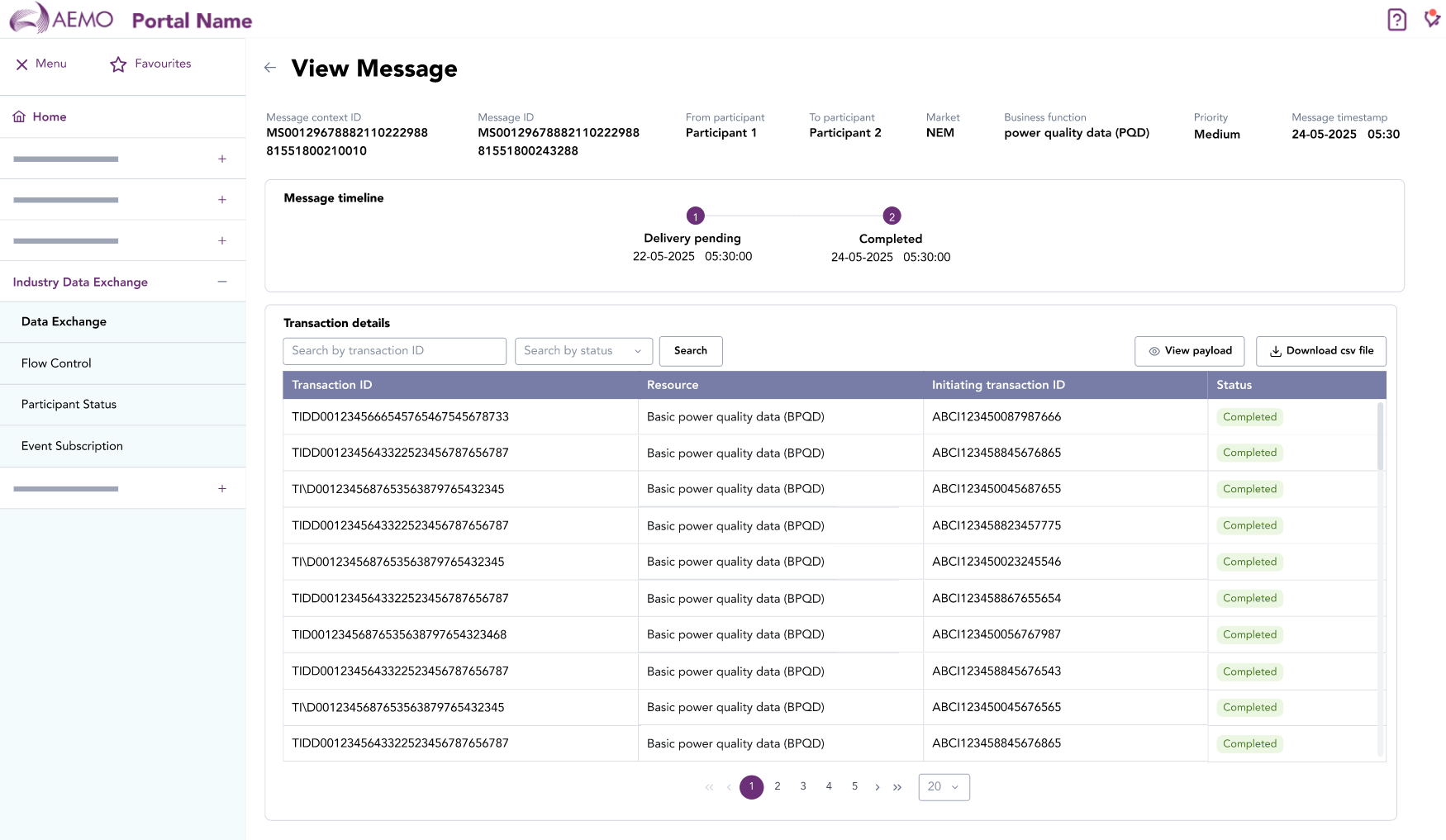
The View Message interface—available in the Outbound Archive and Transaction Log interfaces—displays a message’s metadata, delivery timeline, and all associated transactions. You can view message details, review message status, or export a list of message transactions.
The View Message interface is accessed by clicking on the message’s Message Context ID in the Transaction Log interface and Outbound Archive interface.
|
Section |
Element / Field |
Description |
|---|---|---|
|
Message metadata panel |
Message context ID |
Unique message identifier |
|
|
Message ID |
Identifier for this specific message instance |
|
|
From participant |
Sender participant ID |
|
|
To participant |
Receiver participant ID |
|
|
Market |
Market classification |
|
|
Business function |
The IDX business function, for example, power quality data (PQD) |
|
|
Priority |
Message priority level |
|
|
Message timestamp |
Date and time when message was created |
|
Message timeline |
Message status |
Displays the message status and when it occurred |
|
|
Timestamps |
Shows when each stage occurred |
|
Transaction details section |
Search by transaction ID |
Text field for filtering the transaction list by ID |
|
|
Search by status |
Dropdown list to filter by transaction status (e.g., Completed, Failed, or Removed). |
|
|
Search button |
Executes filtering |
|
Transaction table columns |
Transaction ID |
The unique ID for each transaction within the message |
|
|
Resource |
The data resource within in the business function |
|
|
Initiating transaction ID |
The transaction ID when the message is sent |
|
|
Status |
The status of each transaction |
|
Actions |
View payload |
Opens the payload for a selected transaction |
|
|
Download CSV file |
Exports the transaction table as a CSV |
View message details
To view message details:
-
On the main menu, click Data Exchange, then click the Transaction Log tab.
-
Click on the Message Context ID for the listed message. The View Message interface is displayed.
-
Filter transactions by completing the Search by transaction ID and Search by status, then click Search.
Download the list of message transactions
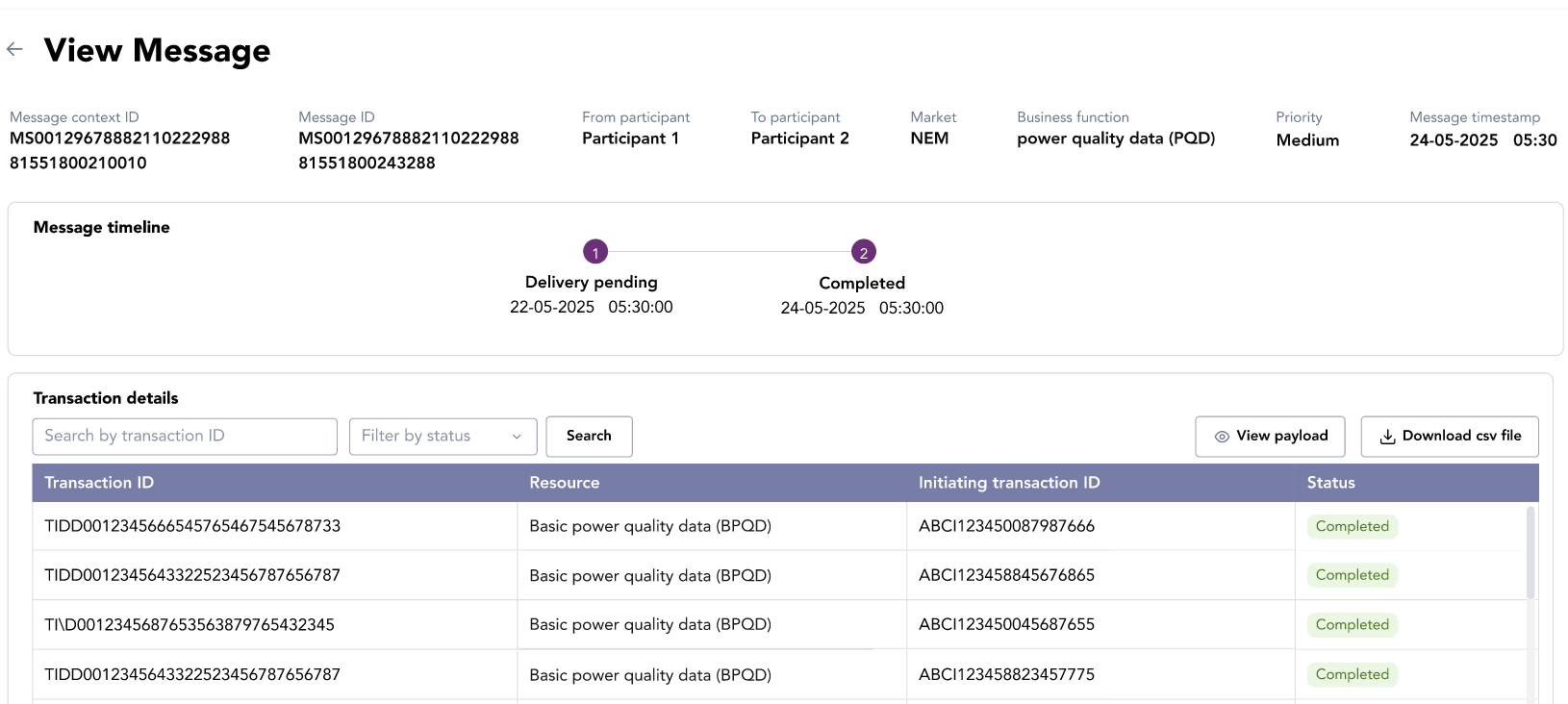
In the View Message interface, you can download a list of transaction metadata in the message by clicking the Download csv file. It will download the first 100 transaction records. To download additional records, select the page with the transaction and select Download csv file again.
View and download message payload
A message payload containing transaction details can be viewed. In the Transaction Log interface, it is available when the message status is Delivered or Completed One of the status points of a Change Request..
The message can be downloaded as a zip file containing the json payload and non-repudiation signature. In the Transaction Log interface, it is not available to download when the message status is Delivery Pending A status point of a Change Request.. However, it is available in the Outbound Archive > View Message interface.
To view and download the message payload:
- View message details.
- Click View payload. The payload is displayed in a pop-up window.
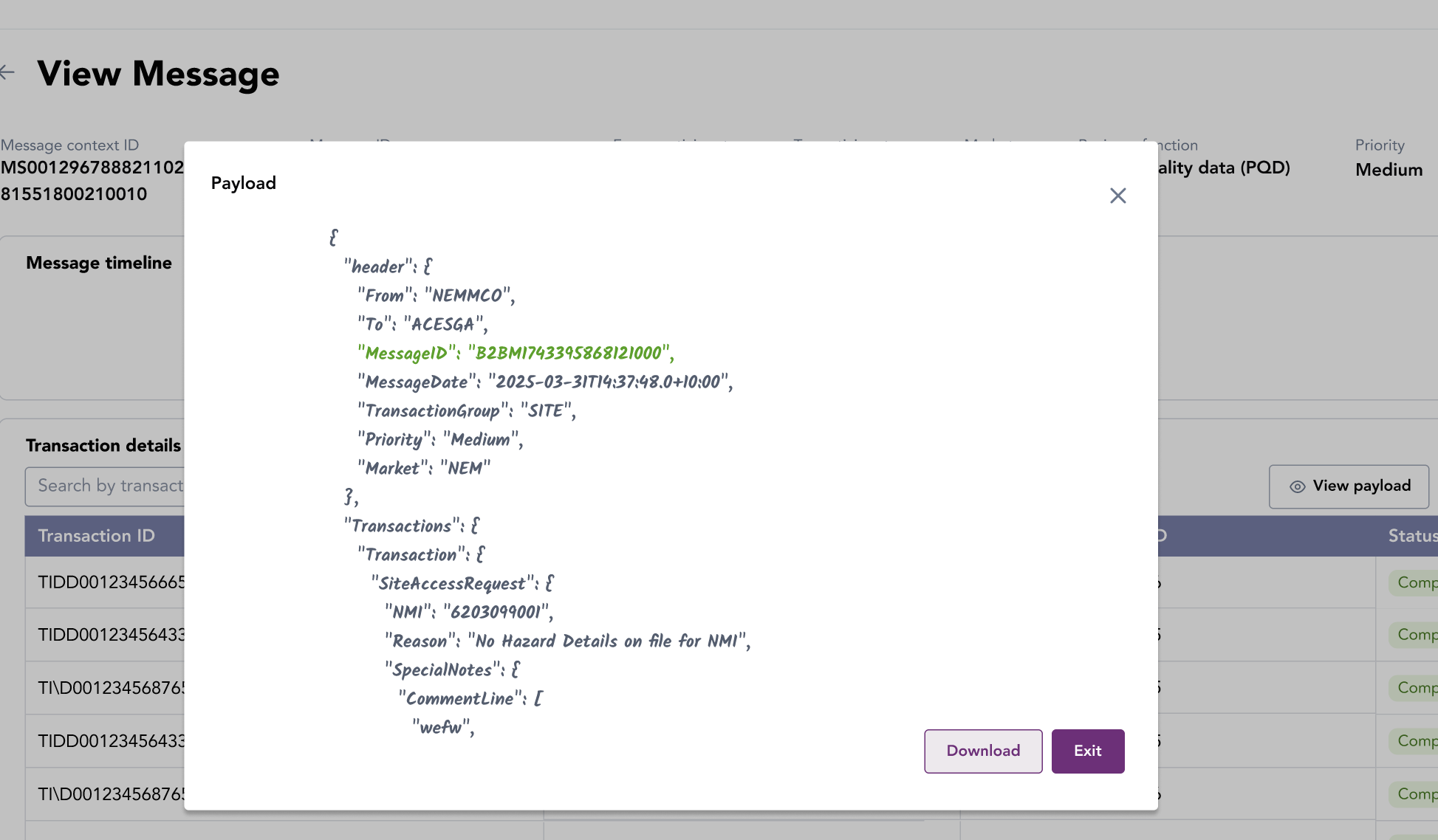
- Click Download to download a zip file containing the payload file and non-repudiation signature file.
6.3 Flow control
The Flow Control interface manages message queues for B2B and B2M Business Functions. It provides real-time visibility into the message processing status and allows control over outbound message delivery. The Flow Control API is also available for integration and programmatic control in participants’ systems.
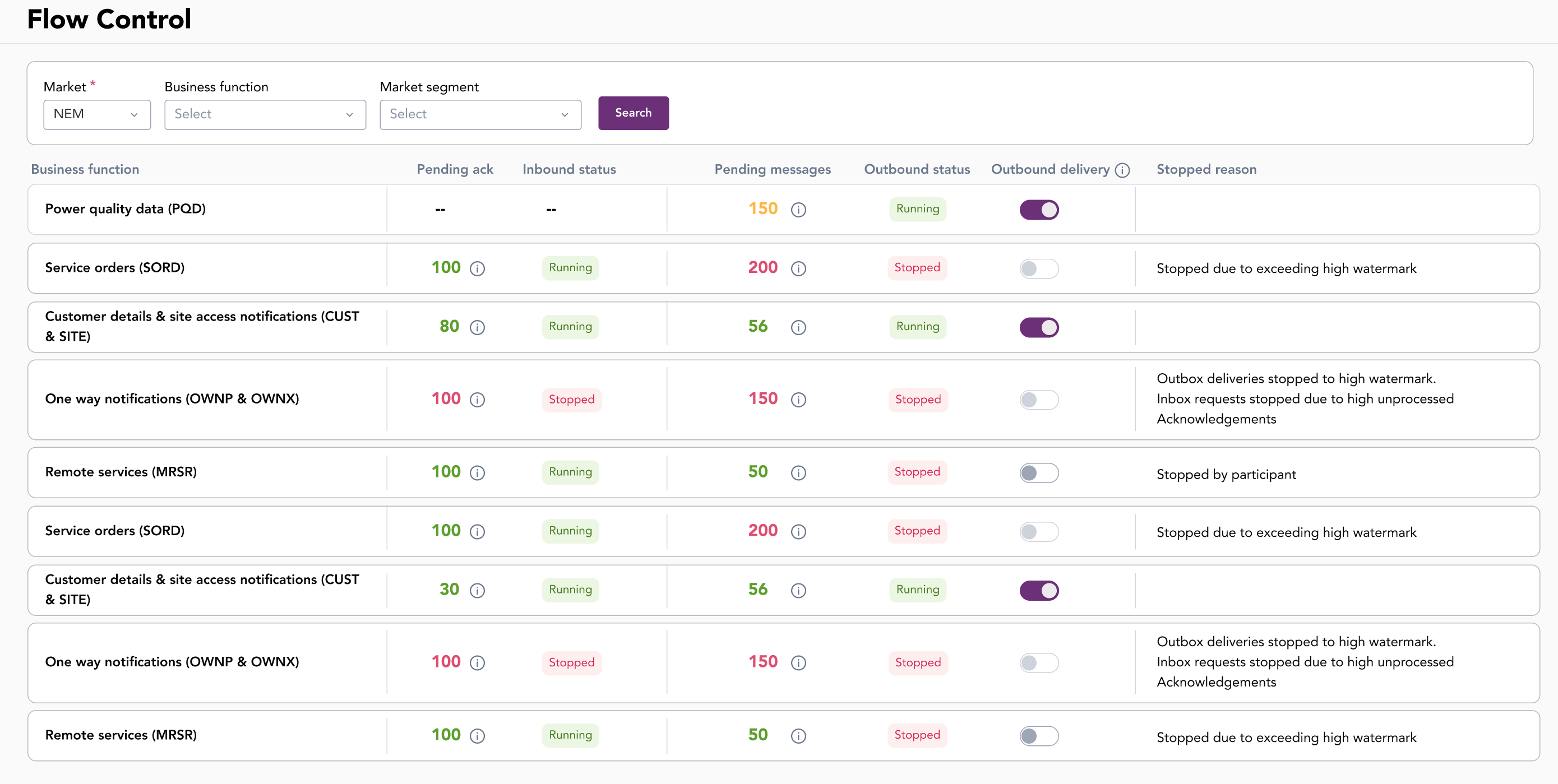
The interface includes a search filter to view business functions by market, business function, and segment.
6.3.1 Understanding flow control
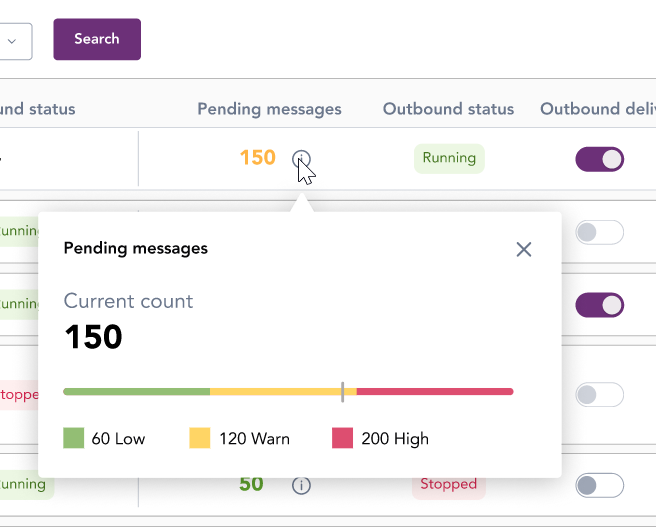
Flow Control in IDX manages how messages are delivered from a participant by monitoring their message queue limits defined by watermark levels. These limits are defined for each business function and determine whether participants are warned about delays or are stopped from sending files.
The watermark levels are defined for each business function. The total message count for all resources in a business function determines the queue's overall message count.
There are three watermark levels based on the number of unacknowledged or unretrieved messages in a participant’s queue.
|
Watermark |
Inbound message |
Outbound message |
|---|---|---|
|
Low |
Inbound message acknowledgement flow is operational. The Participant’s outbound queue is approaching the low watermark for pending acknowledgement messages
|
Inbound message flow is operational. When the participant retrieves enough messages so the message count drops below the low watermark, message flow restarts |
|
Warn |
The warning indicates that the participant is delayed in processing message acknowledgements and may soon reach a stop threshold |
The warning indicates that the participant is delayed in retrieving messages and may soon reach a stop threshold |
|
High |
The number of message acknowledgements in a Participant’s outbound queue has exceeded the high threshold and the message flow is stopped |
The number of unretrieved messages has exceeded the high threshold and the message flow is stopped |
6.3.2 Flow control fields
|
Column name |
Description |
|---|---|
|
Business function |
Lists the Business Functions. For this IDX Release, only Power Quality Data (PQD) will be listed |
|
Pending ack |
Shows the number of pending acknowledgements for messages. Values are colour-coded according to watermark level. Clicking the information tooltip displays watermark details. |
|
Inbound status |
Indicates the status of messages to be acknowledged:
This is only applicable for business functions using an async data exchange pattern. This is not applicable for Basic Power Quality Data (BPQD) using the Fire and Forget data exchange pattern. |
|
Pending messages |
Displays the count of messages to be acknowledged. Higher numbers can indicate congestion. |
|
Outbound status |
The outbound message delivery status is one of:
|
|
Outbound delivery |
A switch to manually enable or disable outbound message delivery. |
|
Stopped reason |
The reason for inbound messages being stopped, such as:
|
6.3.3 Filter messages
To filter messages:
- Navigate to Industry Data Exchange > Flow Control.
- Use the filter options at the top of the interface to filter messages:
- Market: Select the relevant market. For example, NEM.
- Business function: Select the function to monitor. For example, Power Quality Data (PQD)
- Market segment: Select a market if required.
6.3.4 Manage outbound delivery
The Outbound delivery switch allows you to temporarily stop or resume the delivery of outbound files for a business function.

While watermark‑based flow control can automatically stop message delivery when the high watermark threshold occurs, the Outbound delivery switch provides manual control.
Typically, participants pause message delivery when:
- Performing system maintenance or deployments.
- Investigating processing issues.
- Processing a message backlog and preventing new files from arriving.
To stop outbound delivery:
- In the business function row, switch Outbound delivery switch to Off.
- Confirm enabling outbound delivery.
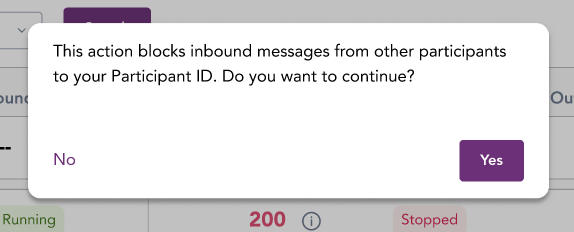
- Resolve any operational activities before re‑enabling delivery.
To resume outbound delivery:
- Ensure any flow control warnings or stop conditions are cleared.
- Switch the Outbound delivery switch to On.
- Confirm enabling outbound delivery.
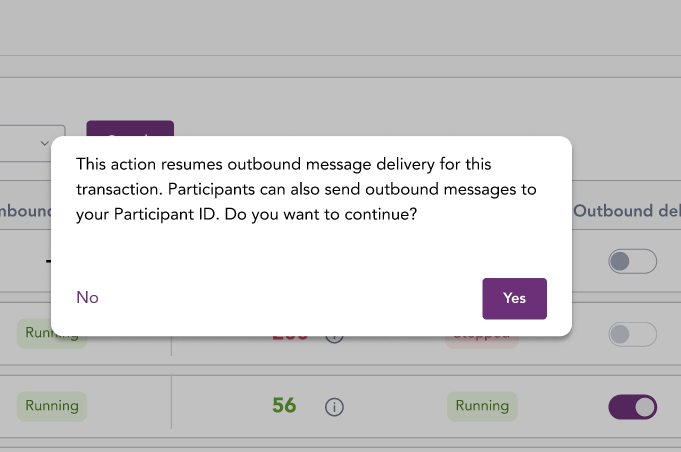
-
Monitor the pending messages and acknowledgements.
6.4 Participant status
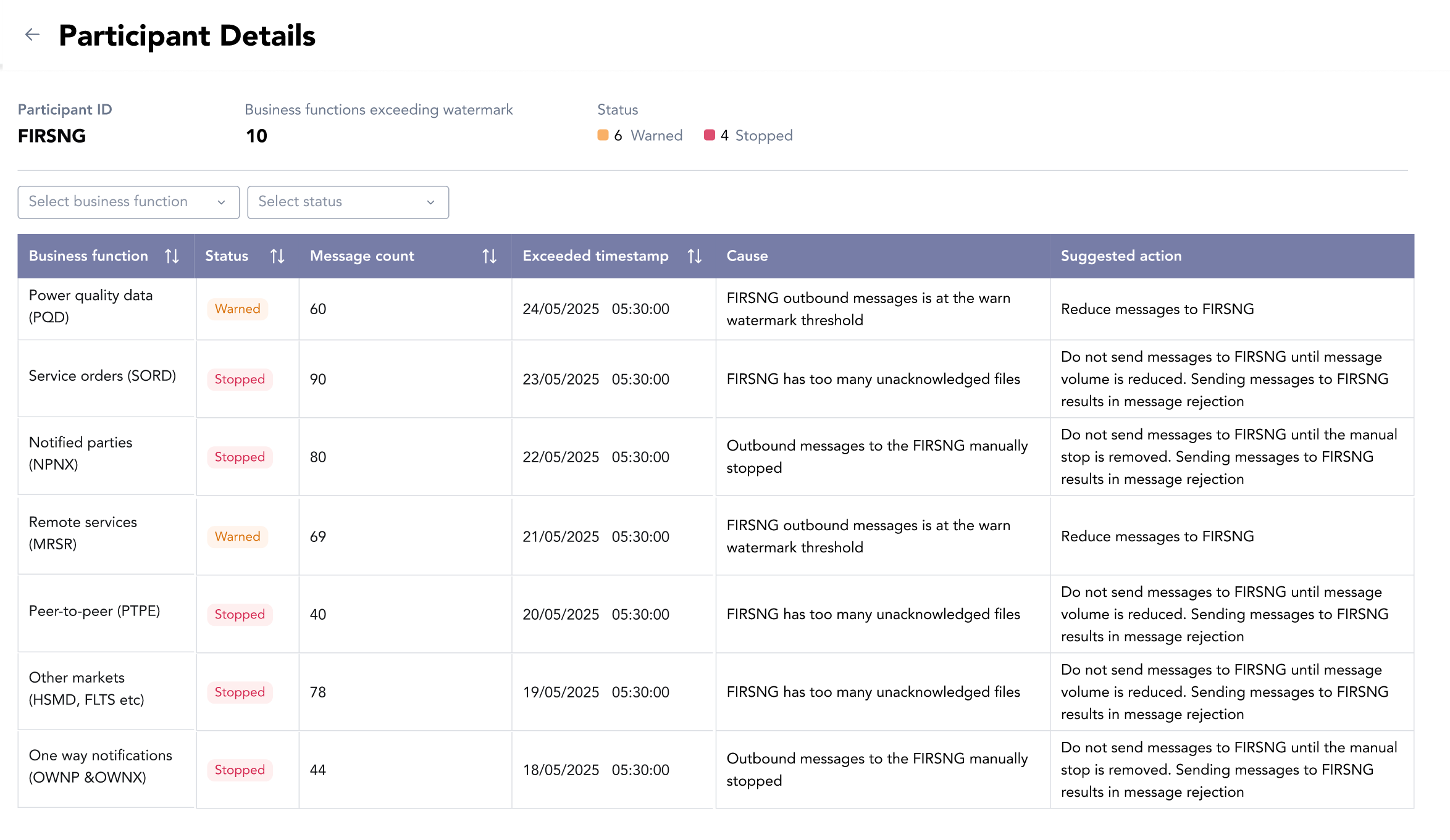
The Participant Status web interface displays the current message flow status for IDX business functions. It shows when message delivery to or from a Participant is in a Warned or Stopped state due to flow control conditions. Business functions in a Low state are not shown.
The interface is informational only. The Flow Control web interface enables modification of a Participant’s flow control conditions.
6.4.1 Overview
The Participant Status interface is a tabular view of participants and their associated business functions.
Drop down 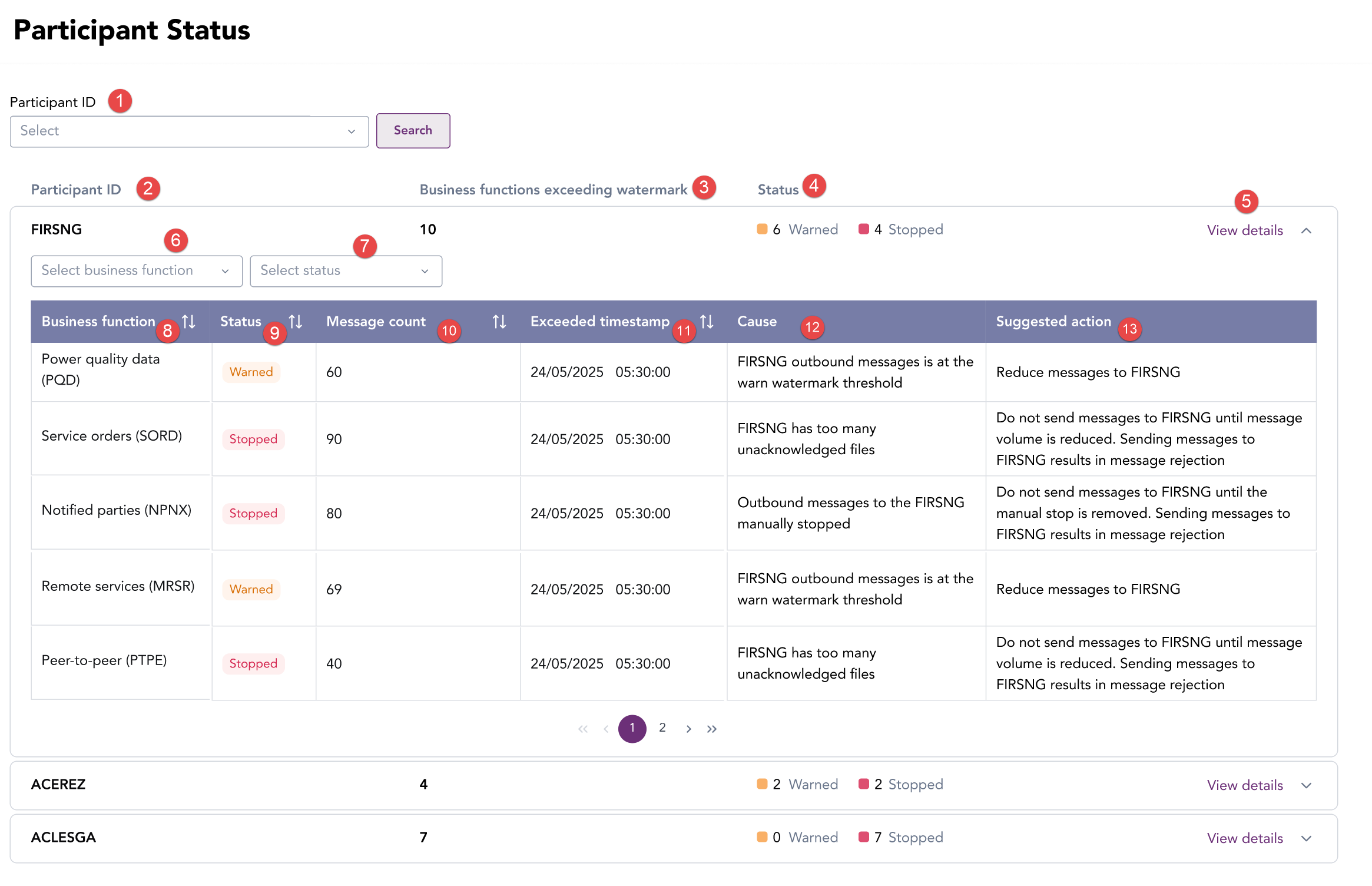
|
|
Field |
Description |
|---|---|---|
|
1 |
Participant ID search field |
Filter view by Participant ID |
|
2 |
Participant ID |
Participant ID |
|
3 |
Business functions exceeding watermark |
The number of business functions exceeding the high watermark for the Participant ID |
|
4 |
Status |
The status for each participant and business function is derived from Flow Control queue thresholds. The statuses are:
|
|
5 |
View details |
Drop down displaying additional status information for the participant and associated business functions and resources |
|
6 |
View details > Select business function |
Drop down filter to display selected business function |
|
7 |
View details > Select status |
Drop down filter to display business functions by status |
|
8 |
View details > Business function |
The IDX business function associated with the Participant. Each row represents one business function |
|
9 |
View details > Status |
The current message‑flow status for the participant and business function. Indicates whether message delivery is:
|
|
10 |
View details > Message count |
The number of outbound messages queued or unacknowledged for the participant and business function |
|
11 |
View details > Exceeded timestamp |
The date and time when the business function first exceeded the flow‑control threshold or was stopped. |
|
12 |
View details > Cause |
A system-generated description explaining why the status was applied |
|
13 |
View details > Suggested action |
Guidance recommending the operational response |
6.4.2 Filter participant status
The Participant Status view can be filtered by Participant ID.
To filter by Participant ID:
- Navigate to Industry Data Exchange > Participant Status.
- In the Participant ID dropdown, select the Participant ID and click Search.
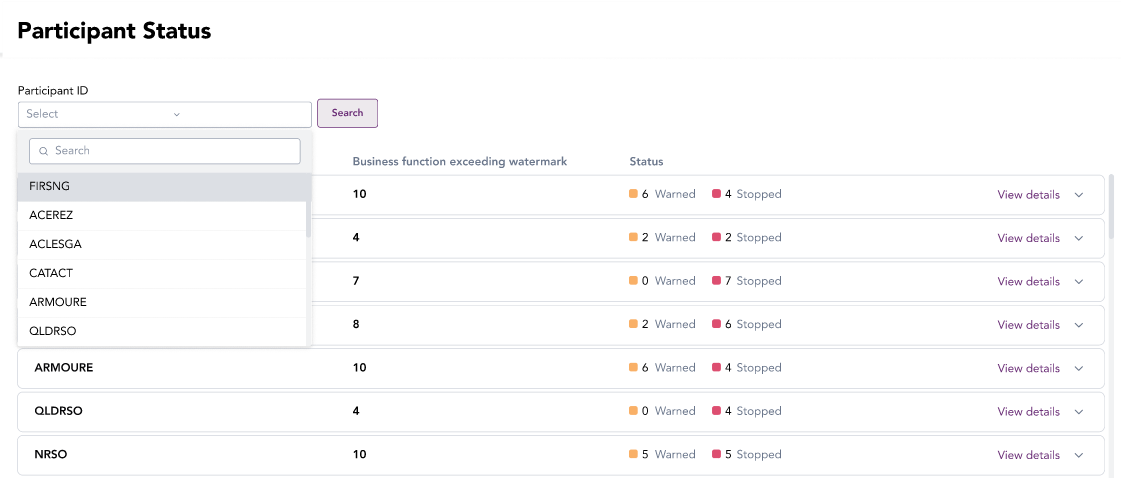
A Participant’s message‑flow status across IDX business functions is displayed.